
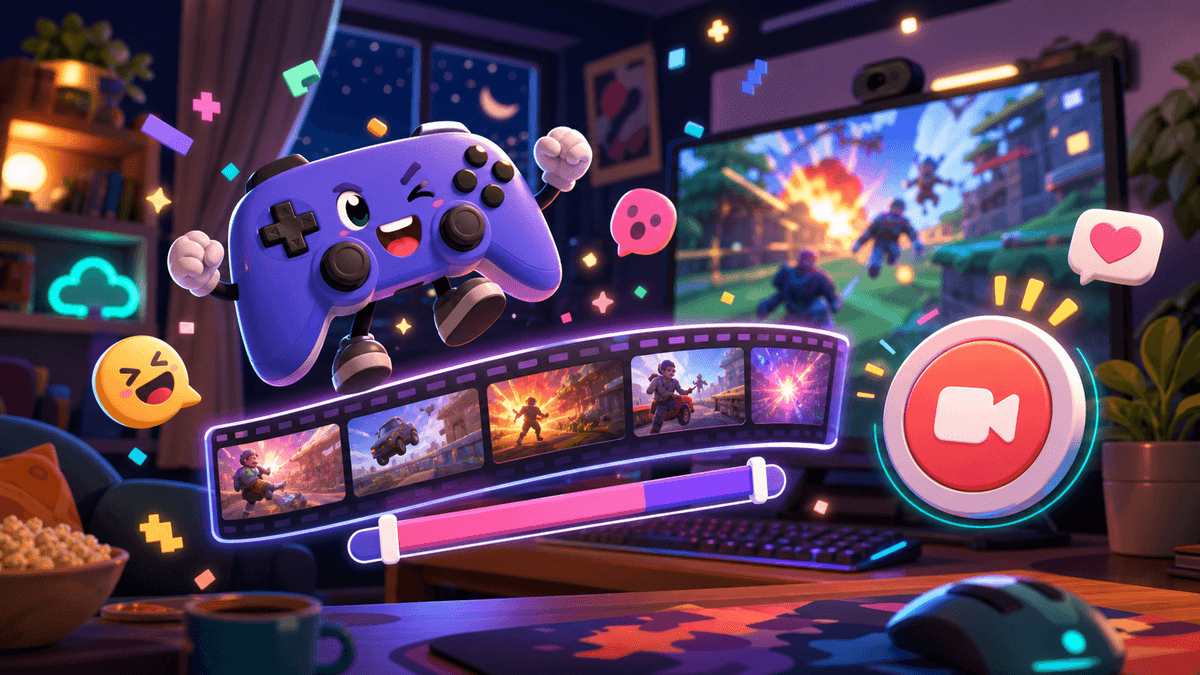
Discord Clips Guide: Save and Share Game Moments
Learn how Discord Clips works, who can use it, how to save game moments, edit clips, share them, and avoid common setup mistakes.

You know the moment. Your friend whiffs an easy shot, someone panic-screams in voice, the whole lobby loses it, and then five seconds later everyone says the same thing:
“Wait, did anyone clip that?”
Discord Clips is built for exactly that kind of chaos. Instead of setting up OBS, recording your whole session, or hoping someone had ShadowPlay running, Clips lets you save recent moments while you are streaming a game to friends on Discord.
This guide explains how Discord Clips works, who can use it, how to set it up, what settings matter, and how to make clips that are actually worth sharing instead of saving 60 seconds of awkward silence before the funny part.
Quick Answer: What Are Discord Clips?
Discord Clips lets you save recent moments from your game stream directly to your computer while you are streaming on Discord. According to Discord’s official Clips support page, clips are stored locally on your machine, and you choose which ones to share.
The important details:
- Clips is currently in Early Access for Nitro members.
- It is available on Windows.
- It is not currently supported on Mac, mobile, or console.
- The default clip keybind is
Alt + C. - Clip length can be set to 30 seconds, 60 seconds, or 2 minutes.
- Clips work best when you stream an application or game, not just your full screen.
- You can edit the clip before sharing it in a Discord text channel.
If you already stream games to friends, Clips is one of the most practical Nitro perks because it captures the moments that make Discord calls fun in the first place.
Who Discord Clips Is Actually For
Discord Clips is not trying to replace a creator-grade recording setup. If you are making YouTube videos, recording full ranked sessions, or editing long-form gameplay, you still want dedicated recording software.
Clips is for smaller, faster, funnier moments:
- A clutch round in Valorant
- A perfectly timed Minecraft fail
- A boss fight save in an MMO
- A reaction from voice chat
- A funny bug in a co-op game
- A last-second win during a server game night
- A friend saying something that instantly becomes server lore
That makes Clips especially useful for friend groups and community servers. A short clip can turn one good moment into a channel conversation, a meme, a recap post, or a reason people show up to the next event.
If your server runs game nights, Clips pairs nicely with the ideas in our summer Discord activities guide. Instead of letting events vanish after the voice call ends, you can save the best moments and post them later.
How to Enable Discord Clips
Before you can make a clip, you need to enable the feature in Discord.
- Open Discord on Windows.
- Go to User Settings.
- Open Clips.
- Turn on Enable Clips.
- Check the keybind, clip length, storage location, and audio options.
Discord says some users with higher-end hardware may already have Clips enabled by default. That sounds convenient, but it is still worth opening the settings once. You want to know where clips are saved, how long each clip is, and whether the default keybind feels comfortable while you are in-game.
Quick tip: test Clips before a real game night. Start a private stream, press the clip keybind, and make sure the saved file has the game, voice, and audio you expect.
The default keybind is Alt + C, but you can change it. If you already use that shortcut in a game, swap it immediately. Nothing ruins a clip setup faster than realizing your “save clip” key also opens a game menu, casts an ability, or alt-tabs your brain into another dimension.
Best Discord Clips Settings
Discord gives you a few settings that matter more than the rest. The right setup depends on whether you care about tiny files, funny voice reactions, or clean gameplay moments.
Clip Length
Discord lets you choose 30 seconds, 60 seconds, or 2 minutes.
For most people, 60 seconds is the sweet spot. It gives enough context before the moment without creating huge files or forcing people to sit through too much setup.
Use 30 seconds if:
- You mostly clip quick jokes or single plays.
- Your storage space is tight.
- You post clips often and want them short.
Use 60 seconds if:
- You want context before the funny part.
- You clip co-op moments with voice reactions.
- You share clips in Discord channels regularly.
Use 2 minutes if:
- Your game moments need setup.
- You run longer raids, boss fights, or custom games.
- You plan to trim clips before sharing.
The trick is remembering that Clips saves the most recent portion of your stream. Press the keybind right after the moment happens, not before.
Audio Settings
Discord’s Clips editor lets you enable or disable game audio and voice channel audio. That matters because some clips are funnier with voice chat, while others are cleaner without it.
Keep voice audio on when:
- The reaction is the point of the clip.
- Your friends are okay with being included.
- The clip is staying inside your server or group.
Turn voice audio off when:
- You want a clean gameplay-only clip.
- Someone says something private.
- You plan to post the clip outside Discord.
That last point matters. Discord makes it easy to share clips with friends, but etiquette still matters. If the clip includes someone’s voice, ask before posting it publicly.
Hardware Encoding
Discord includes a hardware encoding option for clips. In simple terms, hardware encoding can help compress video by using your GPU, but it depends on your machine.
If your game runs smoothly, try it. If you notice FPS drops, stutters, or weird performance dips, turn it off and test again.
Discord also warns that having Clips enabled may affect game performance on lower-end hardware. That is not a dealbreaker, but it is a real trade-off. If your PC already struggles while streaming, Clips may be one extra thing asking your system to do work.
How to Make a Discord Clip
Once Clips is enabled, start by streaming a game through Discord.
Discord’s Go Live and Screen Share guide explains that Go Live can share an application window or an entire screen. For Clips, Discord specifically recommends streaming through Application instead of only sharing your screen, because that helps capture game audio properly.
The basic flow:
- Join a voice channel.
- Start streaming your game with Go Live.
- Play normally.
- When something worth saving happens, press your Clips keybind.
- Discord saves the recent portion based on your clip length setting.
You can also use the Save Clip icon near the game title while streaming.
The most common mistake is pressing the keybind too early. Clips is not a “start recording now” button. It is more like “save what just happened.” If your friend lands the impossible shot, press the keybind right after the shot, while everyone is still yelling about it.
How to Edit and Share Discord Clips
Discord does not force you to share every clip exactly as captured. You can trim the moment before posting it.
To edit or share:
- Go to the text channel where you want to share the clip.
- Tap the plus icon next to the message box.
- Choose Share a Clip.
- Pick the clip you want.
- Use the timeline to trim it.
- Toggle game audio or voice audio if needed.
- Rename the clip if the title is boring.
- Share it.
Good clip titles help more than people think. “round 7 clutch” is fine. “how did this work” is better. “do not let Jay drive again” is the kind of title that makes a server click instantly.
For community servers, try making a dedicated clips channel. Keep it casual:
#clips#game-night-highlights#best-moments#server-lore
Then pin a short rule: post clips from server events, avoid private conversations, and keep voice clips respectful.
Discord Clips Mistakes to Avoid
Clips is simple once it works, but a few mistakes can make it feel broken.
Streaming your whole screen instead of the game: if game audio is missing, make sure you are streaming the application or game directly.
Using a bad keybind: if Alt + C conflicts with your game, change it before you play.
Saving clips that are too long: a two-minute clip can be useful, but most people will not watch the whole thing unless the payoff is obvious.
Posting voice chat publicly without asking: private friend-group chaos is funny because it is private. Do not turn someone else’s voice into public content without permission.
Leaving Clips on when performance tanks: if your game starts stuttering, disable Clips and test whether performance improves.
Clipping everything: not every moment needs to be saved. The best clips are easy to understand even if someone was not in the call.
Is Discord Clips Worth Nitro?
Discord Clips alone probably is not enough reason for everyone to buy Nitro. But for people who stream games to friends several times a week, it can be one of the most useful Nitro perks.
It is worth caring about if:
- You play co-op or competitive games with friends.
- Your server hosts game nights.
- You like saving funny voice reactions.
- You want clips without running separate recording software.
- You already use Nitro for streaming, uploads, emojis, or profile perks.
If you are deciding whether Nitro makes sense overall, our Discord Nitro features ranked guide breaks down which perks are genuinely useful and which ones are mostly cosmetic. If you want Nitro without paying directly, our guide on legit ways to get free Discord Nitro compares rewards sites, Discord Orbs, promotions, and giveaways.
For server owners, Clips can also make events feel more alive. A good clip from a game night can become a recap post, a reward prompt, or a weekly highlight. Our Discord server reward ideas guide has more ways to turn activity into something members actually remember.
Final Verdict
Discord Clips is a small feature with a very real use case: saving the funniest, messiest, most “you had to be there” moments from Discord game streams.
Set it up before you need it. Use a comfortable keybind. Stick with 60 seconds unless you know you need more. Stream the game application, not just your screen. And be normal about sharing clips that include other people’s voices.
Do that, and Clips becomes less of a random Nitro perk and more of a tiny memory machine for your server.
Sources Checked
Reviewed on June 7, 2026:
Share this article
Related Articles
Discord Profile Decorations: Frames, Effects & More
Understand Discord Profile Frames, Avatar Decorations, Profile Effects, Nameplates, banners, Shop purchases, Orbs, and which customization features need Nitro.
Is Discord Nitro Basic Worth It? Features Ranked
See whether Discord Nitro Basic is worth it at $2.99 monthly. Compare its current perks, limits, annual price, and differences from full Nitro in 2026.